
How to Backup and Restore Spotify Music Library Effectively
Backing up your Spotify music library is a smart way to avoid unexpected loss, whether due to account issues, accidental changes, or switching devices. Your playlists, followed artists, and saved songs often take time to build, and losing them can be frustrating. To keep everything safe, it's a good idea to back up your Spotify music library regularly. The good news is, both Kigo Music One and Kigo Spotify Converter can help you easily back up and restore your Spotify library, so your favorite music is always protected and ready to recover whenever you need it.
Part 1. How to Backup Spotify Music Library inside Kigo Program?
- Step 1 Launch the latest version of Kigo Music One, select the Spotify service, and then choose Web Mode. If you use Kigo Spotify Converter, simply choose Web Mode from the interface.
- Step 2 Log in to Spotify to view your music library.
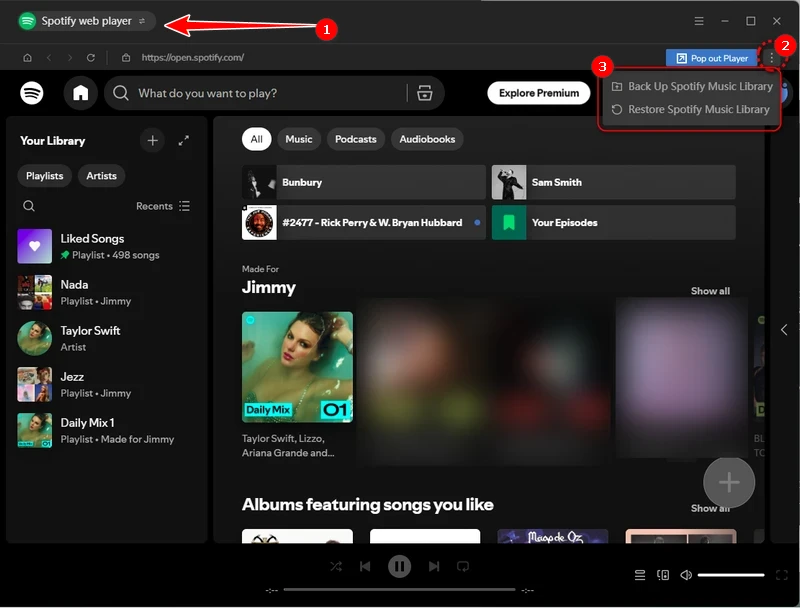
- Step 3 Tap the three-dot next to "Open web player" or "Pop out Player".
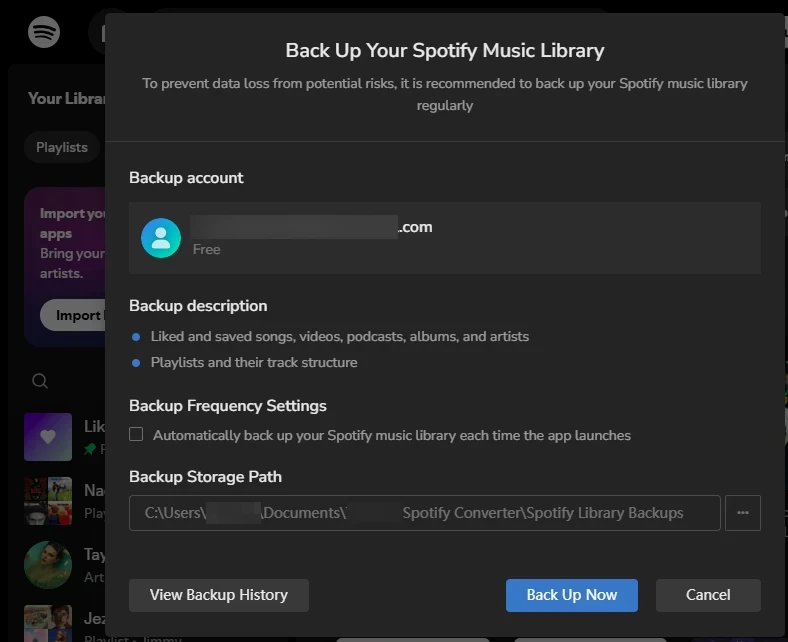
- Step 4 Select "Back Up Spotify Music Library."
- Step 5 Follow the on-screen instructions to save the backup file to the computer.
Part 2. How to Restore Spotify Music Library inside Kigo Program?
- Step 1 Start Kigo music Converter and switch to Web Mode.
- Step 2 Log into the Spotify account to access the Spotify music library.
- Step 3 Open the three-dot menu beside Open Web Player or Pop-out Player.
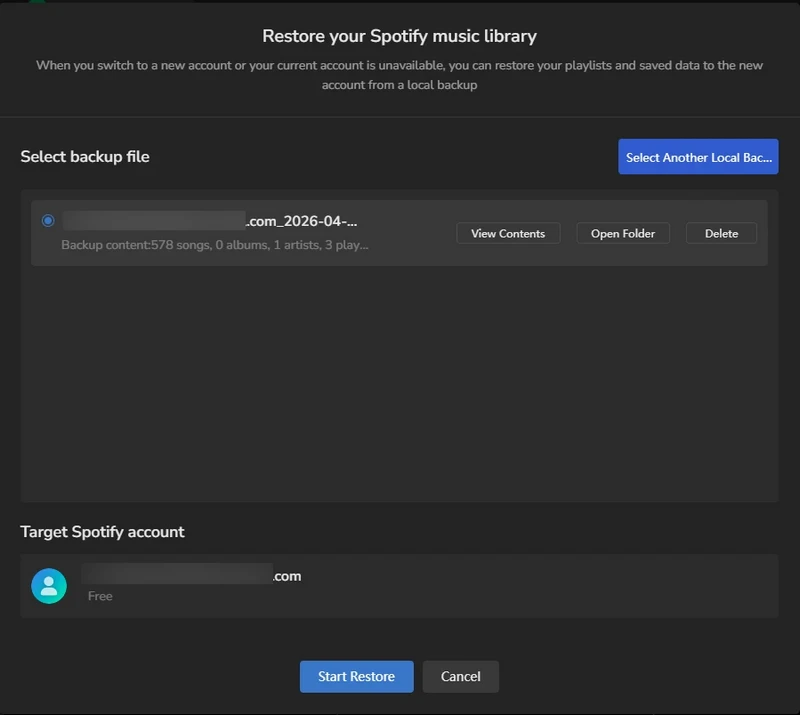
- Step 4 Choose the option labeled "Restore Spotify Music Library".
- Step 5 Pick the previously backed-up file to restore Spotify library to the current account.