

How Kigo Spotify Converter Works?
Kigo Spotify Converter is a powerful tool for Spotify users to download and convert Spotify music into various formats, including MP3, AAC, WAV, FLAC, AIFF, and ALAC with ID3 tags preserved. With this program, you can enjoy your favorite Spotify songs offline on any device.
How to Register Kigo Spotify Converter?
Kigo Spotify Converter is free for everyone to download. The free trial version allows you to convert the first one minute of each song. To unlock the limitation, you need to purchase a license and complete the registration to access the full version.
- Launch Kigo Spotify Converter on your computer. Click the "Register" tab on the bottom left to open the registration popup dialog.
- Copy and paste the registration email and license code you received. Then click the "Register" button.
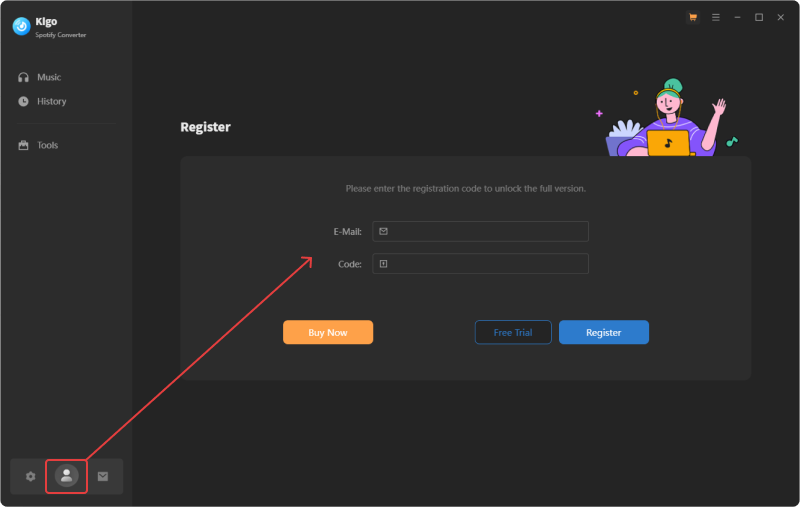
Note: The registration information is case sensitive. Please do not add blank at the beginning or at the end of the registration information.
How to Convert Spotify Music to MP3, AAC, WAV, FLAC, AIFF, ALAC Format?
Step 1 Run Kigo Spotify Converter
Kigo Spotify Converter supports recording songs from Spotify App and Spotify web player. You can select the download source from the top navigation bar and switch between them as needed. After choosing the source, please log in to your Spotify Free or Premium account.
- Spotify App: Need Spotify App installed. Convert songs at 10x speed & keep the best audio quality (including lossless audio).
- Spotify web player: The Spotify web player is embedded in the converter by default. Download songs at 40x speed.
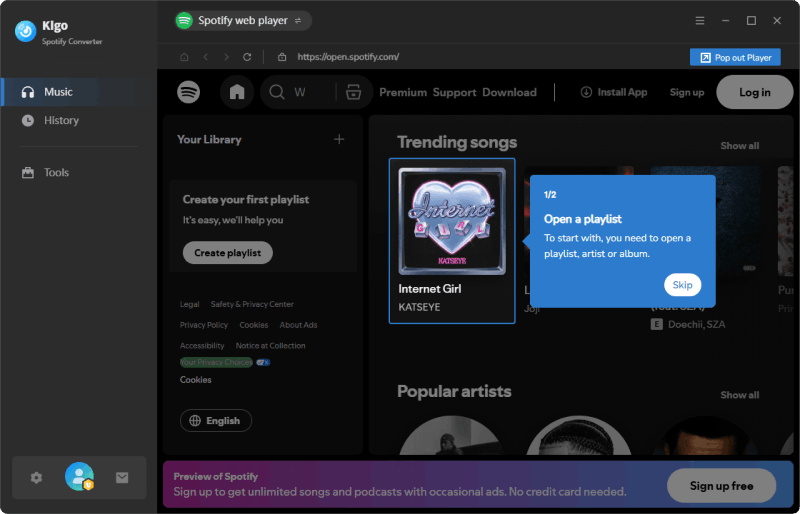
Step 2 Add Spotify songs to Kigo Spotify Converter
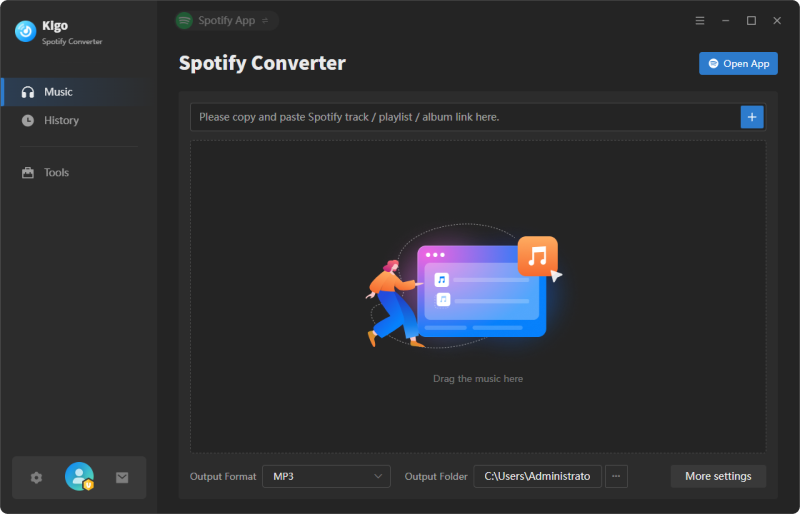
If you choose the Spotify App as the download source, you can drag and drop songs, playlists, or albums from the Spotify app directly into the main interface of Kigo Spotify Converter.
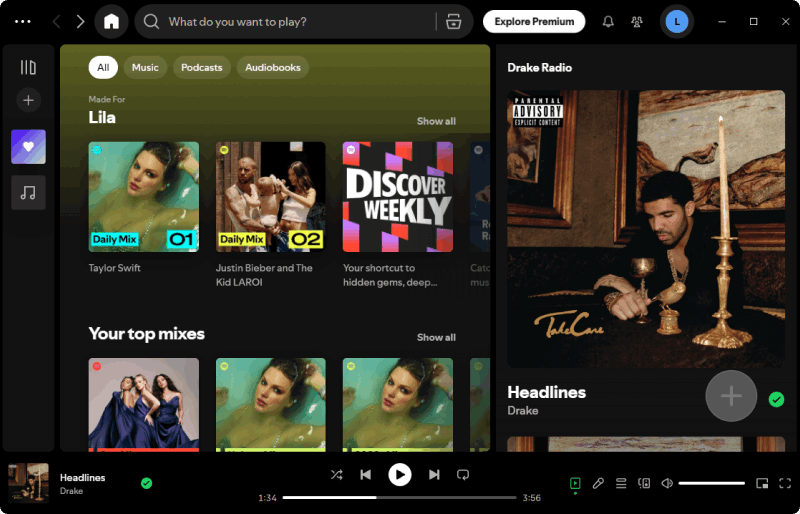
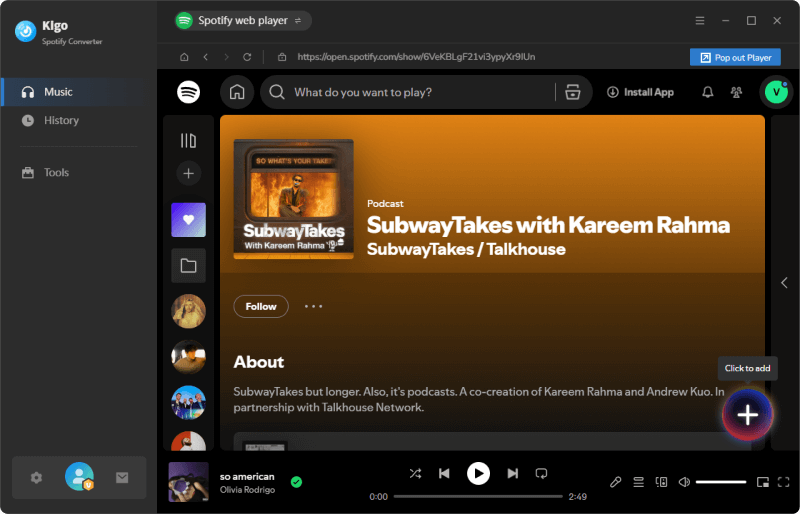
If you choose the Spotify web player as the download source, simply click the "Click to add" button floating at the bottom right of the Spotify music.
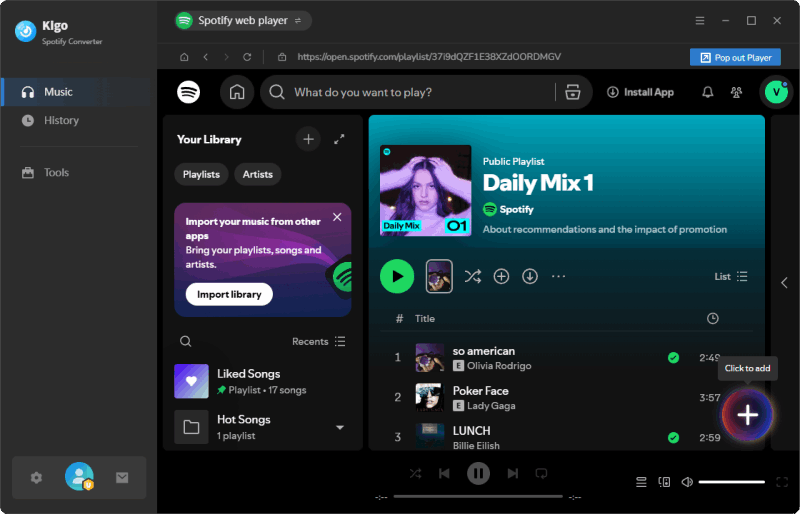
Step 3 Customize the Output Parameters
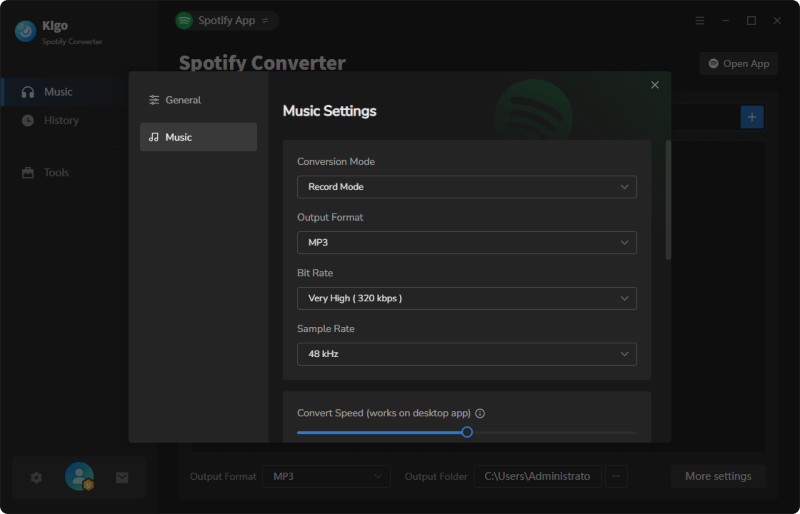
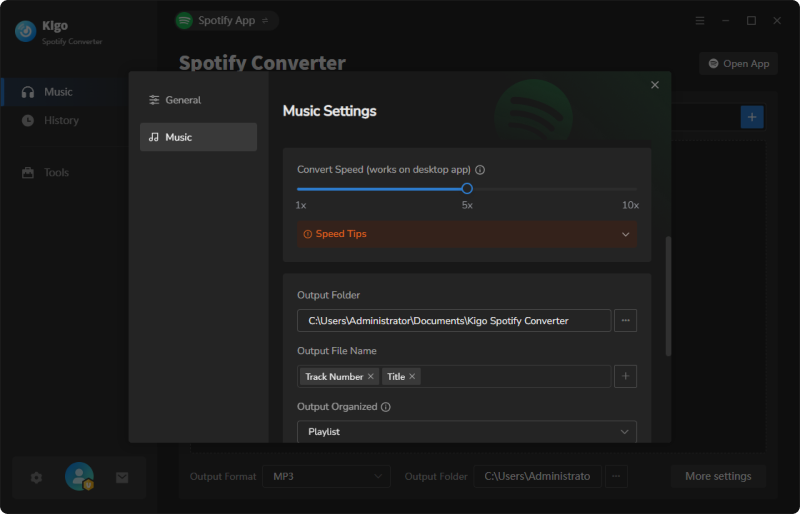
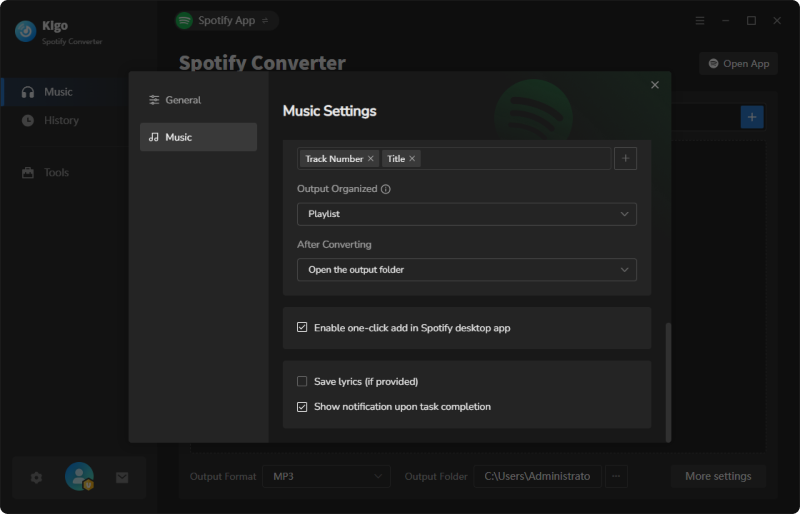
Go to "Settings" of Kigo in the lower left corner. In the Settings panel, you can adjust output parameters to suit your needs—for example, choose the output format (MP3, AAC, WAV, FLAC, AIFF, ALAC), specify the output folder, and customize how converted files are named and organized.
| Settings | Available Options |
|---|---|
| Conversion Mode | Intelligent Mode, Record Mode, YouTube Mode |
| Output Format | Recommended, MP3, AAC, WAV, AIFF, ALAC, FLAC, MP4 |
| Bit Rate | 128kbps, 192kbps, 256kbps, 320kbps (available for MP3, AAC) |
| Bit Depth | 16-bit, 24-bit (available for WAV, AIFF, ALAC, FLAC) |
| Sample Rate | 44.1kHz, 48kHz, 96kHz, 192kHz |
| Conversion Speed | Up to 40x |
| Output File Name | Track Number, Title, Artist, Album, Playlist Index, Year |
| Output Organized | None, Playlist, Artist, Album, Artist/Album, Album/Artist, Playlist/Artist, Playlist/Album |
Step 4 Start Downloading Spotify Songs
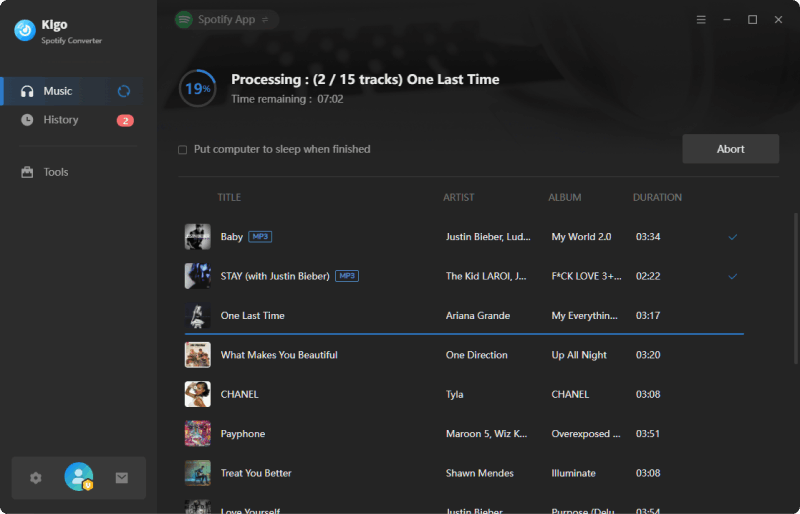
Click the "Convert" button to start downloading and converting your selected Spotify songs to your computer.
Step 5 Find the Downloaded Spotify Songs
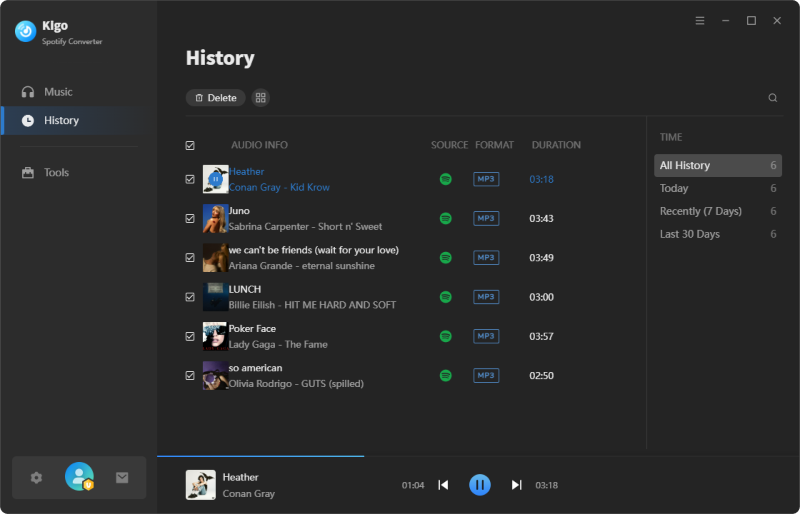
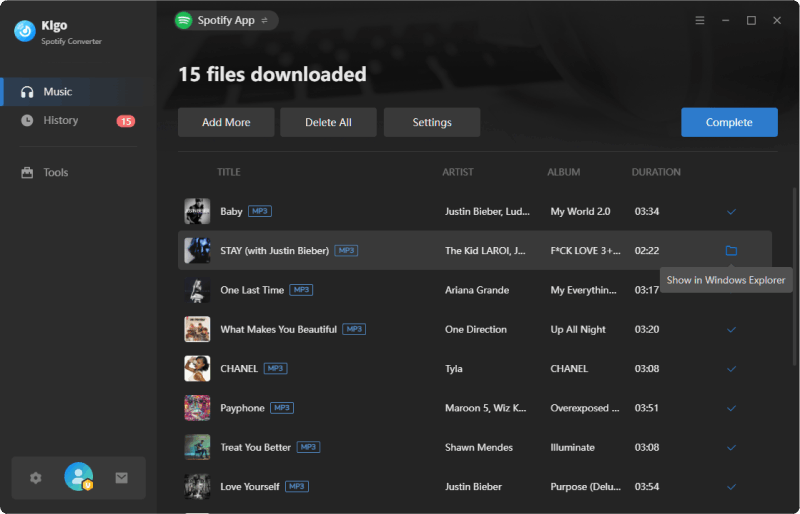
After the conversion is completed, click the "History" tab on the left panel to check the conversion history. Hover your mouse over any song to reveal a folder icon, then click it to open the destination folder directly.
How to Download Spotify Video Podcasts or Music Videos to MP4?
Step 1 Run Kigo Spotify Converter
Go to the top navigation bar and select "Spotify web player" as the download source. Then, log in to your Spotify account.
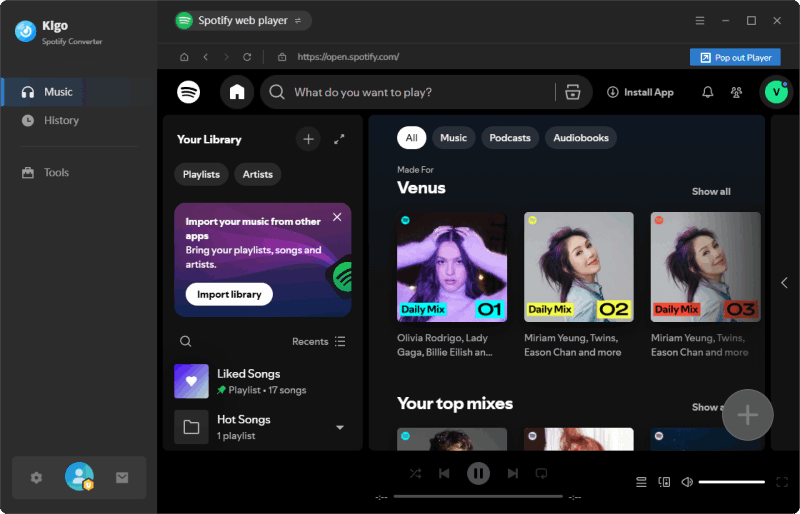
Step 2 Add Spotify Video Podcasts or Music Videos to Kigo Spotify Converter
Through the built-in Spotify web player, search for the video podcast / music video you want to downloaded. Then, click "Click to add" button. (Read how to convert Spotify music videos to MP4 >>)
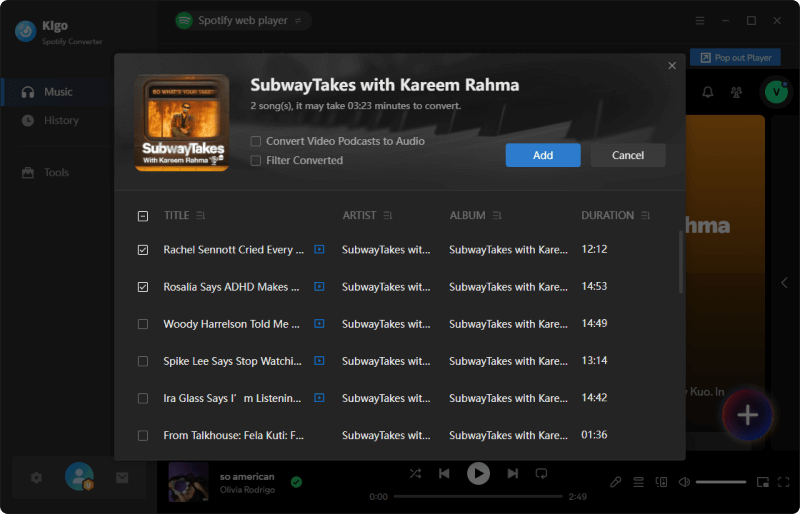
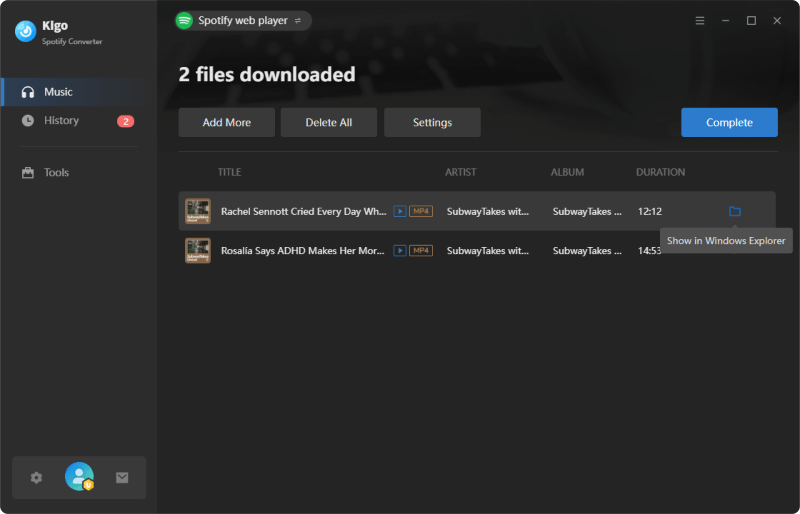
The program will list all available episodes for download. You can select or deselect the ones you want and click "Add" to confirm your choices.
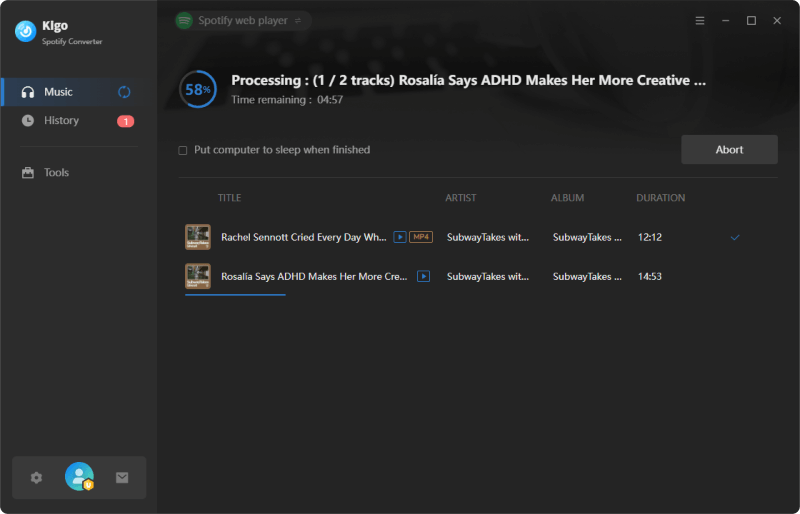
Step 3 Start Downloading Spotify Video Podcasts / Music Videos to MP4
Click the "Convert" button to start downloading Spotify video podcasts / music videos to MP4 files.
Step 4 Find Downloaded Spotify Video Podcasts / Music Videos
When the download is finished, you can check the downloaded video in the "History" tab.
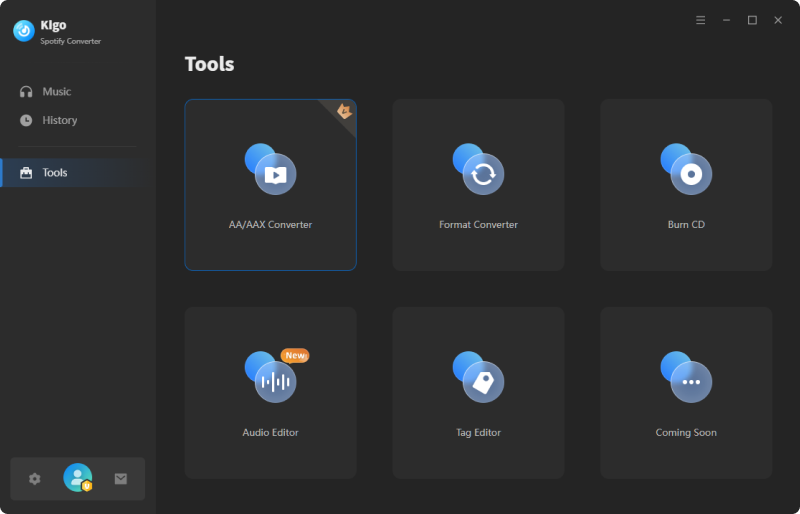
Handy Tools - Format Converter, ID3 Tag Editor, AA/AAX Converter and More
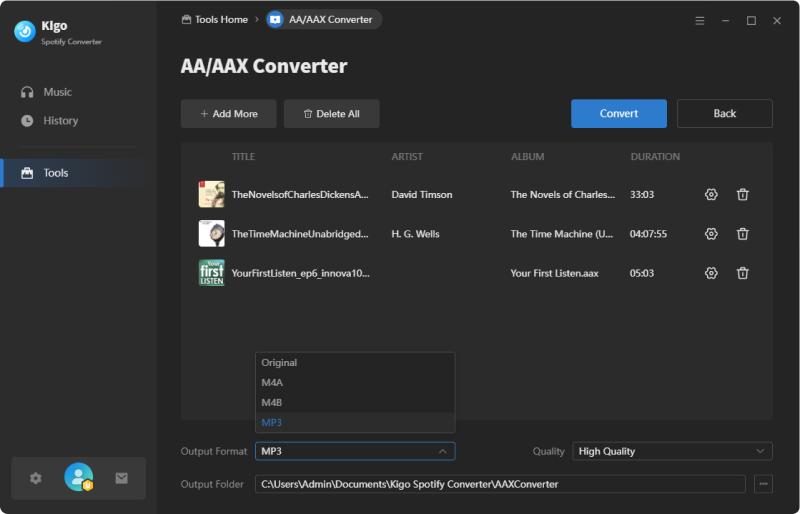
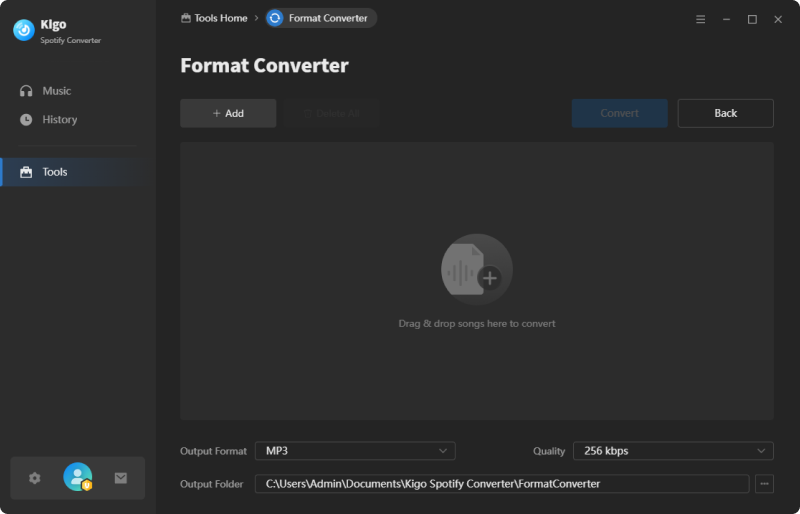
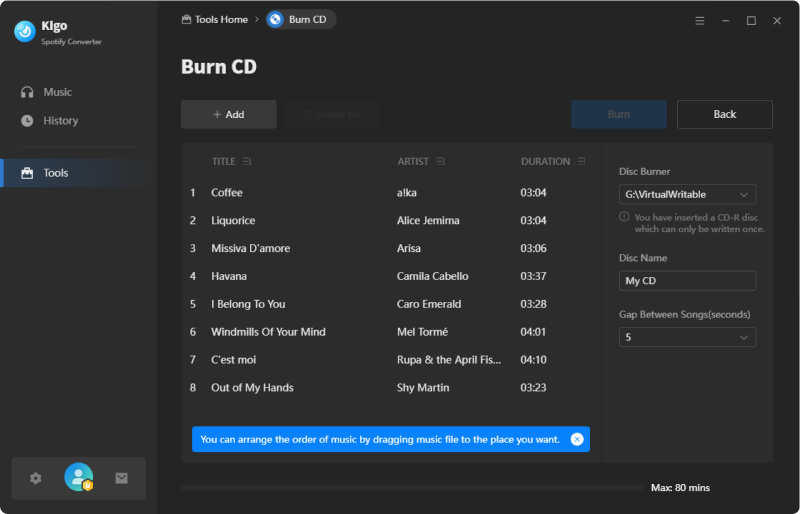
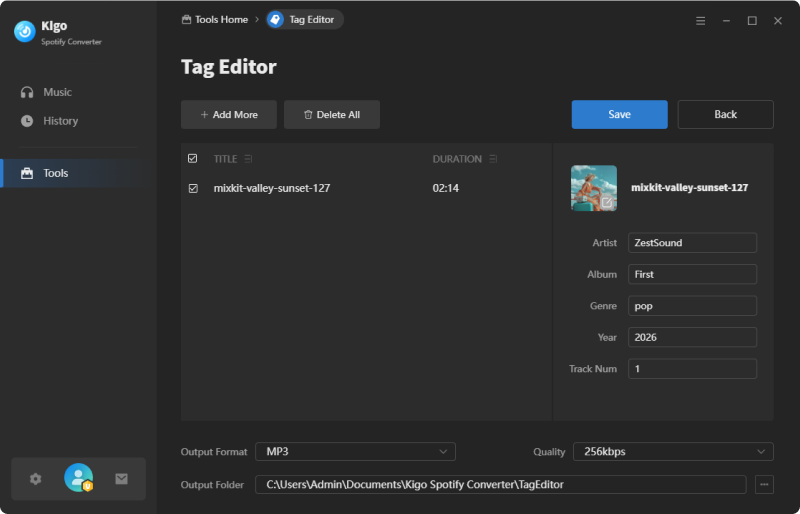
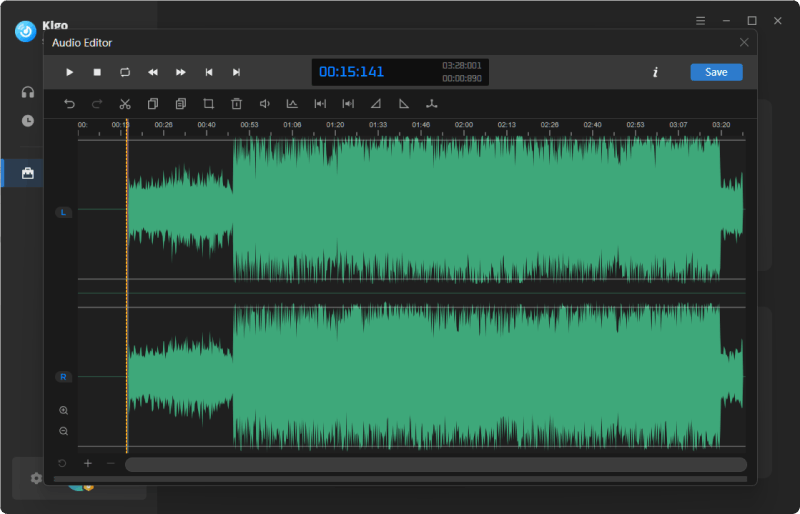
Kigo Spotify Converter provides additional tools that enable users to convert their local music files to various formats including MP3, M4A, FLAC, WAV, OGG, and AIFF. It helps convert your local aa or aax audiobooks purchased and downloaded onto the local computer from Audible for kids, Audible.com, and the iTunes Store to MP3, M4A, or M4B formats for playback on any device. You can also burn your Spotify music files to a CD and edit the ID3 tags of each audio as per your preference. You can find all the functions in the "Tools" section.
- Navigate to the "Tools" tab and select the desired option.
- Add audio files to Kigo Spotify Converter and choose the settings.
Extra Tips
1. Export the converted Spotify music to iTunes
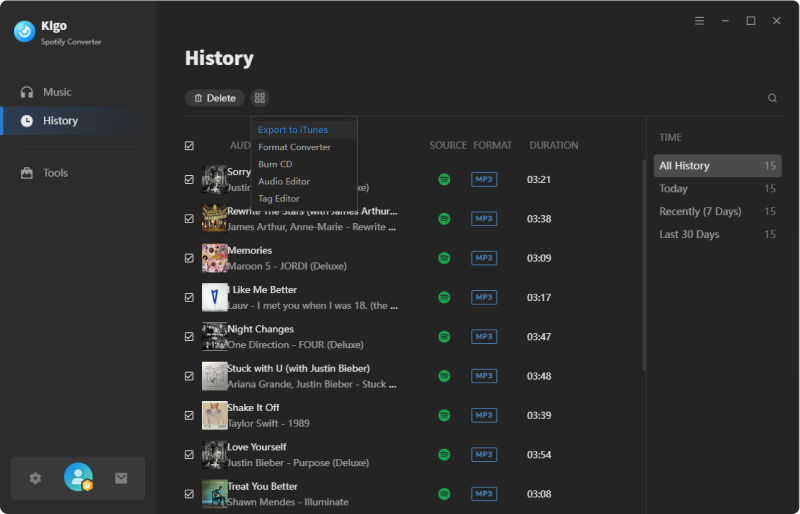
Kigo Spotify Converter makes it easy to transfer your downloaded Spotify songs to iTunes. After conversion is done, you can select the converted music files and click on "Export to iTunes". And simply follow the step to complete the transfer process.
2. Play the Output Audio with Kigo Spotify Converter
Kigo Spotify Converter is also a media player. With a built-in audio player, you can play the output audio with the program directly. Just simply click on "Playback" button on the track view panel.