
Best Way to Add Spotify Music to CapCut (2026 Guide)
Can you add music from Spotify to CapCut? If you're looking to use Spotify tracks as background music in your videos, the answer is yes—but with a few extra steps.
Since there's no direct integration between Spotify and CapCut, we need a dedicated conversion tool to make Spotify music available for your CapCut projects. In this guide, we'll walk you through how to add music from Spotify to CapCut on your computer, iPhone, iPad, and Android devices. Ready to adding music to CapCut from Spotify? Let's get started.
Part 1. Essential Conversion Tool for Adding Spotify to CapCut
As one of the leading music streaming services, Spotify offers over 100 million songs across more than 125 genres. Whether you need energetic beats, cinematic soundtracks, or subtle background music, you'll find the perfect track for your CapCut projects. However, technical limitations prevent you from directly importing music from Spotify into the CapCut video editing app.
Spotify songs are protected by DRM and are downloaded in OGG format for offline playback within the Spotify app. Meanwhile, CapCut supports audio formats such as MP3, AAC, and WAV. To resolve this compatibility issue, converting Spotify music to a CapCut-supported format like MP3 is the most effective solution. Kigo Spotify Converter helps you do exactly that—making Spotify tracks ready for seamless use in your CapCut projects.
Kigo Spotify Converter stands out with its stable performance and efficient conversion, allowing you to convert Spotify tracks to MP3, AAC, WAV, FLAC, AIFF, or ALAC at high speed while maintaining original audio quality. It also preserves essential metadata, including artist, title, album, track number, year, disc number, and artwork—making it easy to organize your music library and quickly identify tracks when adding them to CapCut.

Key Features of Kigo Spotify Converter
- Download Spotify track, album, playlist, podcast, radio, audiobook.
- Convert Spotify music to MP3, AAC, FLAC, AIFF, WAV, or ALAC audio.
- Keep 100% original audio quality; preserve ID3 tags, lyrics.
- Enjoy up to 10× faster conversion speeds with batch downloads.
- Burn Spotify music to CD or export to iTunes with one click.
- Enable offline listening for both Spotify Free and Premium users.
- Activate the permanent playback of Spotify music.
Windows 11/10/8 Free Download
macOS 11 or later
Part 2. How to Get Songs from Spotify to CapCut with Kigo Spotify Converter?
Kigo Spotify Converter enables both Spotify Free and Premium users to extract songs from Spotify as plain audio files. For the best compatibility across mobile and desktop devices, you can use the program to convert Spotify tracks to MP3. Below is a detailed tutorial on how to download and add music from Spotify to CapCut using Kigo Spotify Converter. First, download and install Kigo Spotify Converter on your computer.
Step 1 Add Spotify music to Kigo Spotify Converter
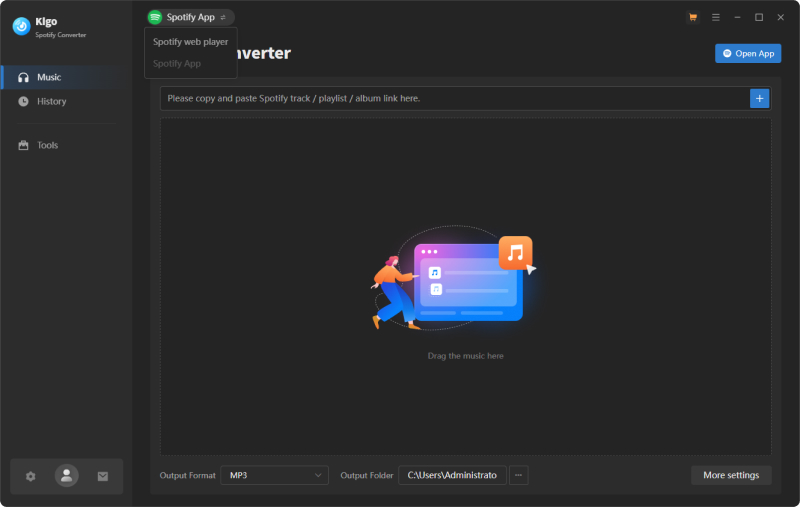
Launch Kigo Spotify Converter, then drag and drop the Spotify track, album, or playlist URL into the main panel for detection. Kigo offers two convenient download modes: one via the Spotify app (recommended if you have the app installed), and the other via the built-in Spotify web player, which lets you search and download music in one place.
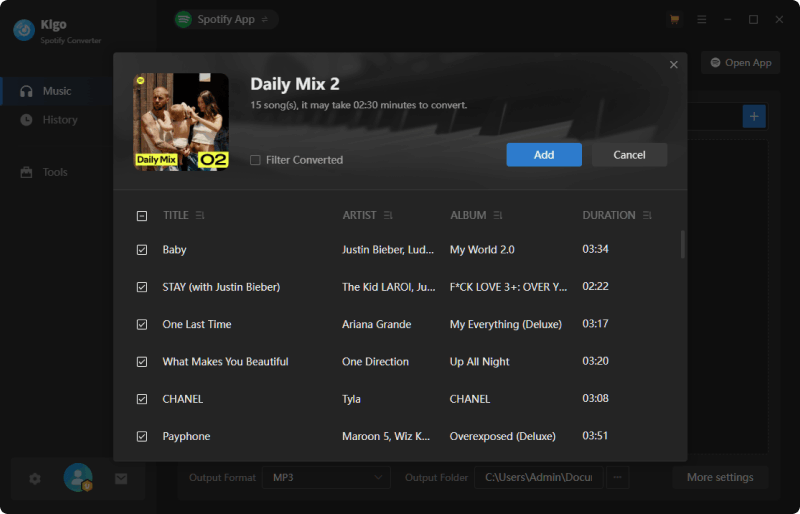
Kigo Spotify Converter will automatically detect the URL and display all available songs in the Add window. Select the songs you want and click "Add".
Step 2 Choose output format, quality and destination path
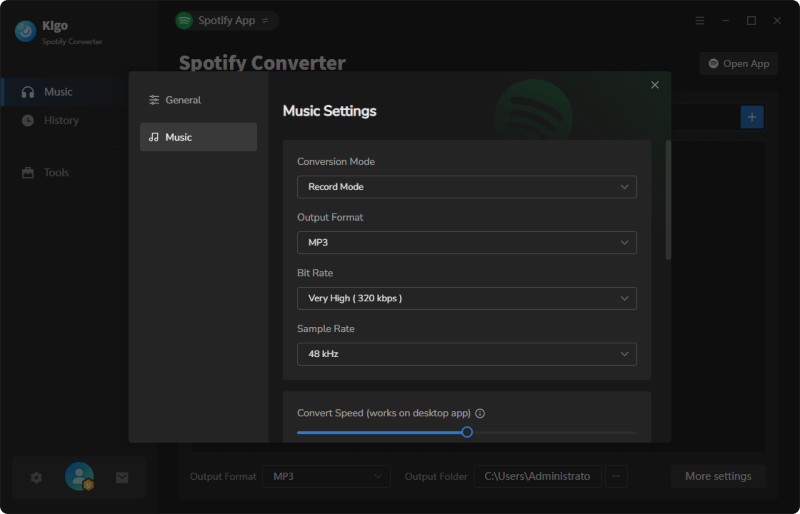
Click the Gear button in the bottom-left corner to open the Settings panel. Here, you can customize the output format (MP3, AAC, WAV, FLAC, AIFF, or ALAC), bitrate (up to 320 kbps), sample rate, and more. Scroll down to choose the destination folder, output file naming format, output organization, and after-conversion actions (such as opening the output folder or putting your computer to sleep).
Step 3Convert Spotify songs to MP3
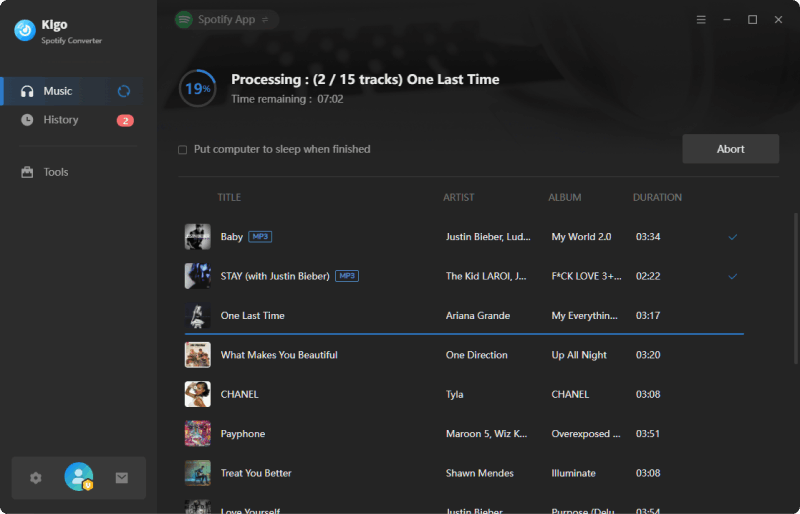
Click the Convert button to start converting your selected Spotify tracks to MP3 at high speed. The conversion panel will display the progress, including download status and estimated time remaining.
Step 4Find converted MP3 files in output folder
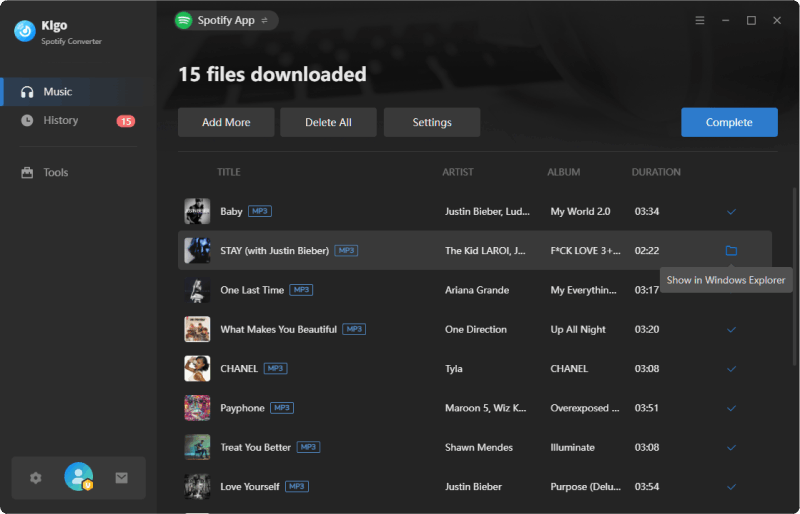
Once the conversion is complete, you can access your converted songs by going to the "History" section on the left. Hover over a song and click the folder icon to open the output folder. Now that you've finished the most important step—converting Spotify songs to MP3—it's time to import them into your videos with CapCut.
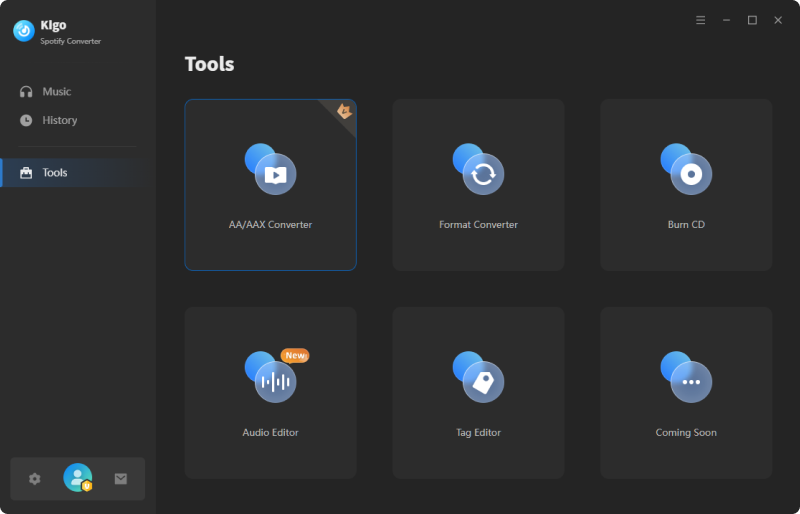
Note: Kigo Spotify Converter also comes with several useful built-in tools, including an audio format converter, ID3 tag editor, AA/AAX converter, and more. You can even export converted Spotify songs directly to iTunes.
Part 3. How to Add Music to CapCut from Spotify on Computer?
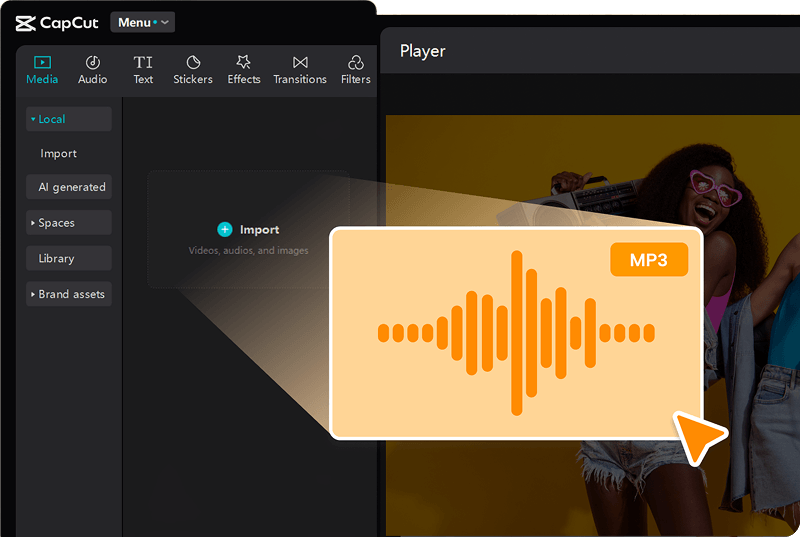
The desktop version of CapCut offers a larger workspace, giving you more precise control over audio and video editing—ideal for creating long-form content. To add Spotify music to CapCut on your computer, launch the CapCut desktop video editor on your PC, then open an existing project or create a new one.
Click Media > Import to put the converted Spotify songs to your CapCut project. With CapCut's advanced audio editing features, you can trim clips by adjusting the start and end points, add audio effects, adjust volume, and more.
Part 4. How to Add Music to CapCut from Spotify on iPhone/iPad/Android device?
If you're a frequent user of TikTok, YouTube Shorts, or Instagram Reels, the CapCut mobile app is ideal for editing and creating short-form videos. In the previous tutorial, you've already converted Spotify songs to MP3 using Kigo Spotify Converter. Now, with just a few simple steps, you can easily import Spotify music into CapCut as background music.
➡️ At the very first beginning, transfer the Spotify songs to your iPhone, iPad or Android device.
For iPhone, iPad:
Connect your iPhone or iPad to your computer using a Lightning cable or use AirDrop for wireless transfer. Once the transfer is complete, open the Files app on your iPhone/iPad to confirm successful transfer before launching CapCut.
For Android:
Connect your Android device to your computer using a USB cable or use AirDroid to enable wireless transfer between your computer and Android device over a local network connection. After the transfer, you can find the converted Spotify songs in your device's music library or file manager, ready to be imported into CapCut during the editing process.
➡️ Follow the steps below to import Spotify music to CapCut:
Step 1 Download CapCut on your iPhone/iPad/Android device via App Store or Google Play.
Step 2 Open CapCut and create a new project.
Step 3 Import your video or image that you want to use.
Step 4 Tap on the Audio tab on the bottom toolbar, then choose Sounds.

Step 5 Choose Folder icon, then tap on From device and select the downloaded Spotify MP3 file that you want to import.

Step 6 Tap on the plus (+) button next to the MP3 file to add it to your project.
Step 7 Ready to publish? You can click the "Share to TikTok" button to upload your videos to TikTok directly. You can also share the videos to WhatsApp, Facebook, and Instagram, etc.
Conclusion
With the help of professional Spotify conversion tool Kigo Spotify Converter, adding music from Spotify to CapCut becomes easy. By extracting audio from Spotify as MP3, you now can connect Spotify to CapCut, unlocking new creative possibilities for your video projects. Try Kigo Spotify Converter now and convert any Spotify song, playlist, or album to MP3 with excellent quality and ID3 tags, making it easy to use in CapCut as background music for your videos.

Simon Durden | Editor-in-Chief
Simon Durden is the Editor-in-Chief at KigoSoft, specializing in video download and conversion. Before joining to KigoSoft, he served as a senior writer with the Any Video Converter Team. With extensive knowledge of video streaming platforms and expertise in video editing, Simon delivers high-quality content, expert tips, and in-depth tutorials in the multimedia field.